
Labs
A Lab represents a group of users who work together. It usually corresponds to a real-world lab. Right now, a lab is the billing unit on Sundog. The lab lead will have signed a contract to use Sundog, and it will be available to their team.
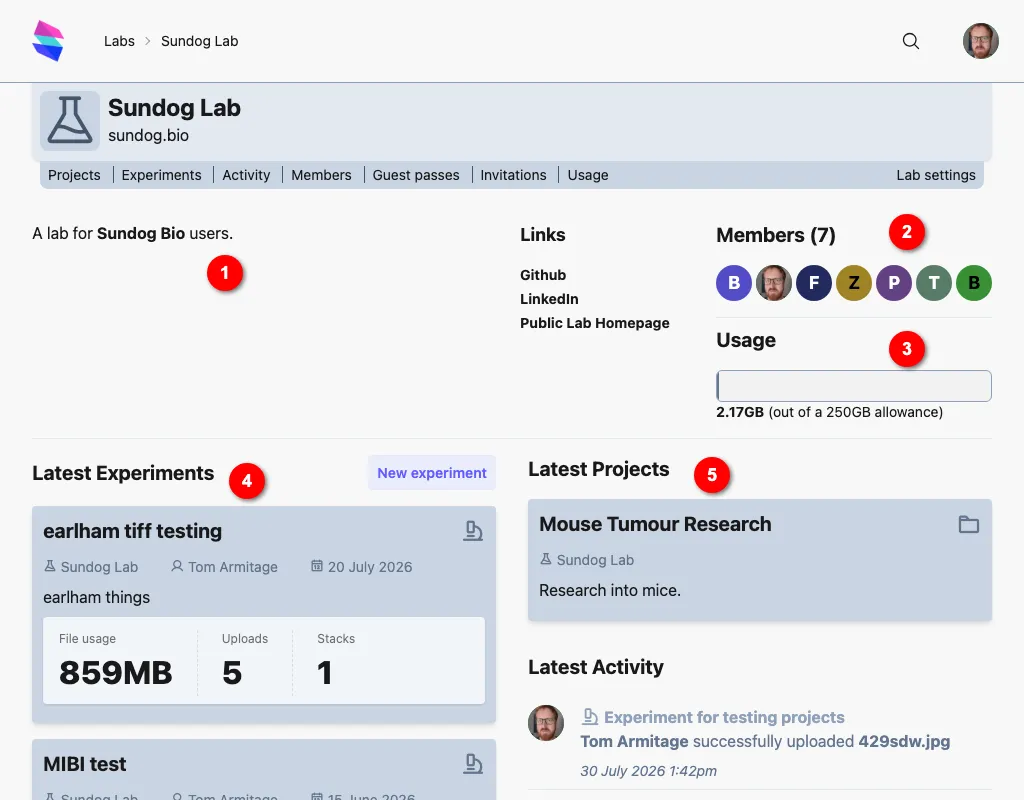
The lab homepage shows
- Lab description and details, including website URL, and perhaps other useful links.
- A list of all users in the labs, with their avatar; hover over them to see names, or click through to see profiles.
- Storage usage. Labs pay for a fixed amount of storage; they must pay more to bolt on extra storage. Clicking through will show usage in detail.
- The latest experiments in the lab, sorted by recency. Click through to an individual experiment, or click all experiments to view a paginated list of all experiments.
- The latest activity across all experiments in the lab.
Lab menu
Section titled “Lab menu”The Lab Heading appears on all pages related to the lab; the submenu at its bottom is the Lab Menu, which has links to the primary areas for the lab.

This is the main way to quickly navigate between major site areas related to the lab. Each ‘section’ of the homepage represents a more detailed area, and they are available from this list.
Note that some items in this list will only be visible to lab admins (see below).
Lab members
Section titled “Lab members”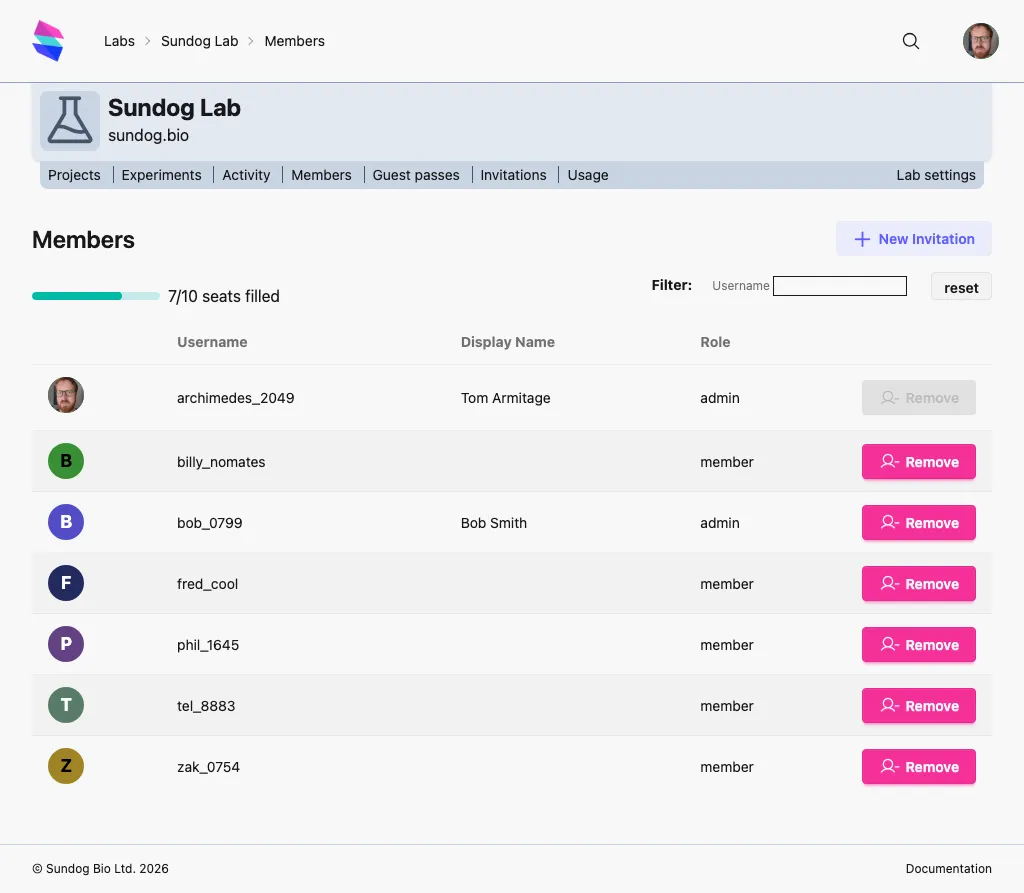
Lab members can be listed from the Members menu. This lists every user who is connected to the lab via an affiliation. It also shows how many lab member seats out of its allowance the lab has used up.
There are three possible roles a user can take within a lab:
- member (the default)
- admin (can also administer the lab on Sundog, inviting users, etc)
- leader (usually the lab lead / PI; can also invite users, etc.)
Users can be invited to the lab from the Members page, as well as the Invitations page. A user who doesn’t have a Sundog account can make one at the same time as accepting their invite.
Users can be affiliated to more than one lab on Sundog. If the invited user already has a Sundog account, they’ll join your lab alongside their existing labs.
Guest passes
Section titled “Guest passes”Users outside your lab can be invited to individual Projects as guests (see: adding users to projects as guests). Each time a user is invited as a guest, they will use up a guest pass slot for the lab. The Guest passes page lists every guest pass currently used in the lab (as well as the lab’s usage of its guest pass allowance).
Managing lab invites
Section titled “Managing lab invites”As a lab admin, you can see all the invites, which ones have been accepted, and you can retract ones that haven’t been accepted. You will be able to see what role users have been invited to - including guests - and, for guest users, what project they have been invited to.
Permissions
Section titled “Permissions”Anything “inside” a lab - experiments, uploads, stacks - is only visible to members of that lab.
Anyone affiliated to a lab can create new Experiments and Projects inside it.
Guests cannot create Experiments or Projects. They will either have the role Viewer, which allows them to see stacks and experiments in a project, or Commenter, which also allows them to leave comments and annotations on stacks.
Lab usage
Section titled “Lab usage”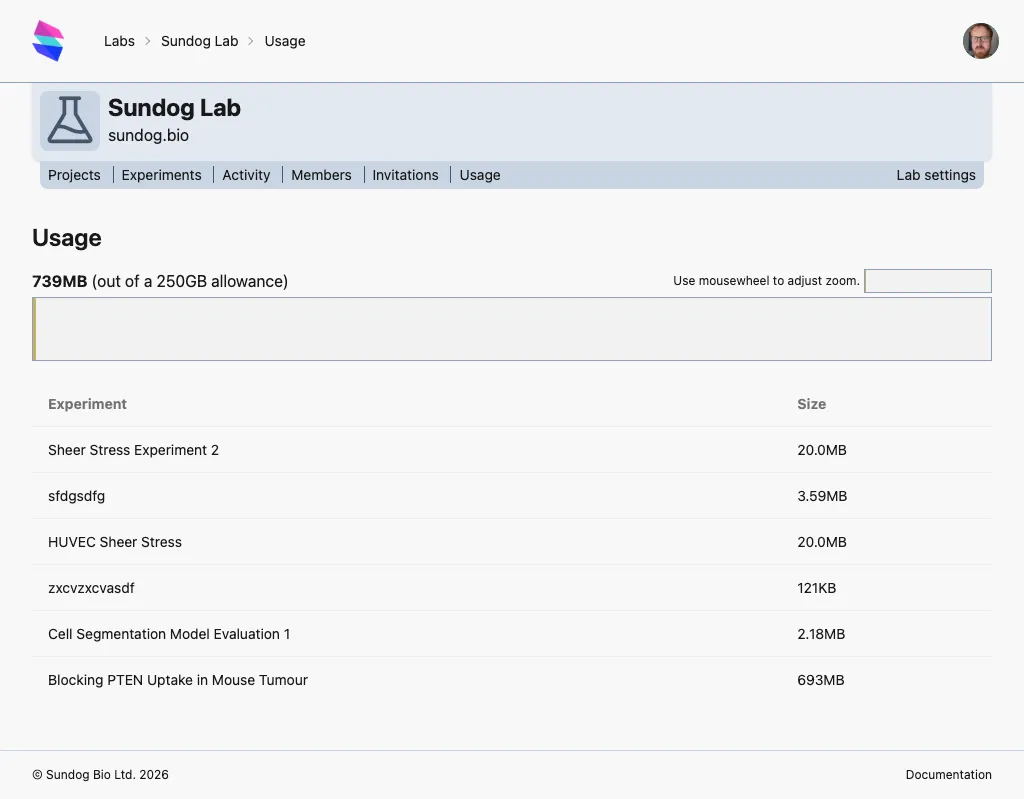
The lab usage page shows how much storage space each experiment in the lab is using. Hover over individual items in the list to highlight them in the graph, and vice versa.
Hover over the large usage chart and use your mousewheel (or trackpad-pinch) to zoom in and out; drag the scrollbar at the bottom of the chart to navigate it when zoomed in. The “minimap” top right will show where in the barchart you are. This is particularly useful for zooming in on small projects.