
Uploads
An Upload is a single file uploaded to an experiment.
Sundog supports many image file formats:
tiff,jpeg,png, are all supported natively. Multi-page tiffs are supported.- tiff-derived formats - notably OME-TIFF,
qptiff,scn,svscan be processed: the pyramidal layers are currently treated as individual pages. (If you are working with a pyramidal file, for now, we recommend always creating a Stack from the largest possible images). - proprietary formats - notably,
czi- currently are not supported. If the file output of your device isn’t directly supported, for now, we recommend converting it to atiff. Further device-specific image support is forthcoming.
Uploading a file
Section titled “Uploading a file”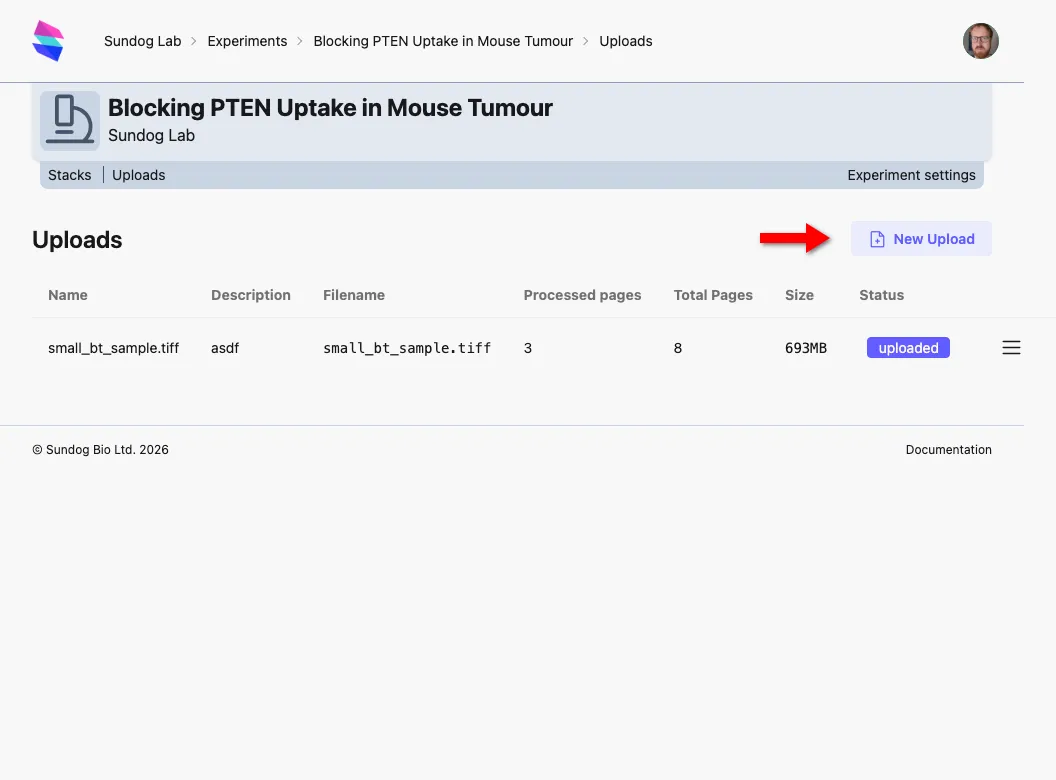
From the Experiment’s Uploads page, click New Upload. (Alternatively, use the New → Upload shortcut from the Experiment homepage, just above the latest stacks/uploads).
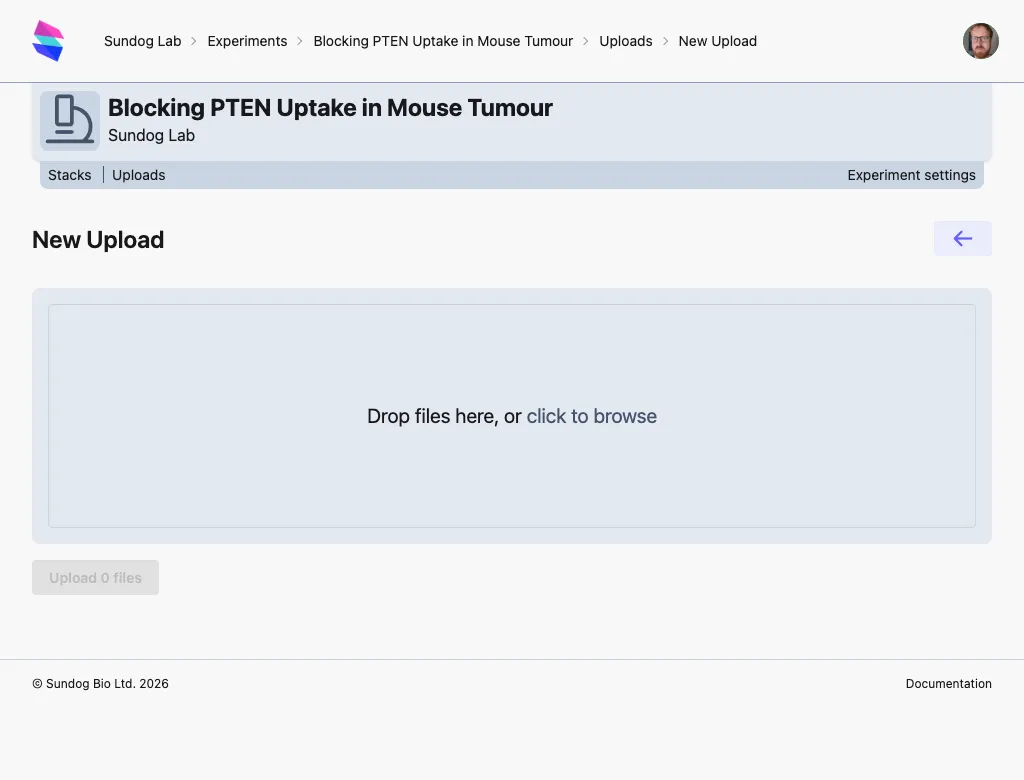
Drag one or more files into the drop area on the page, or click on the large drop area to pick files from your local computer.
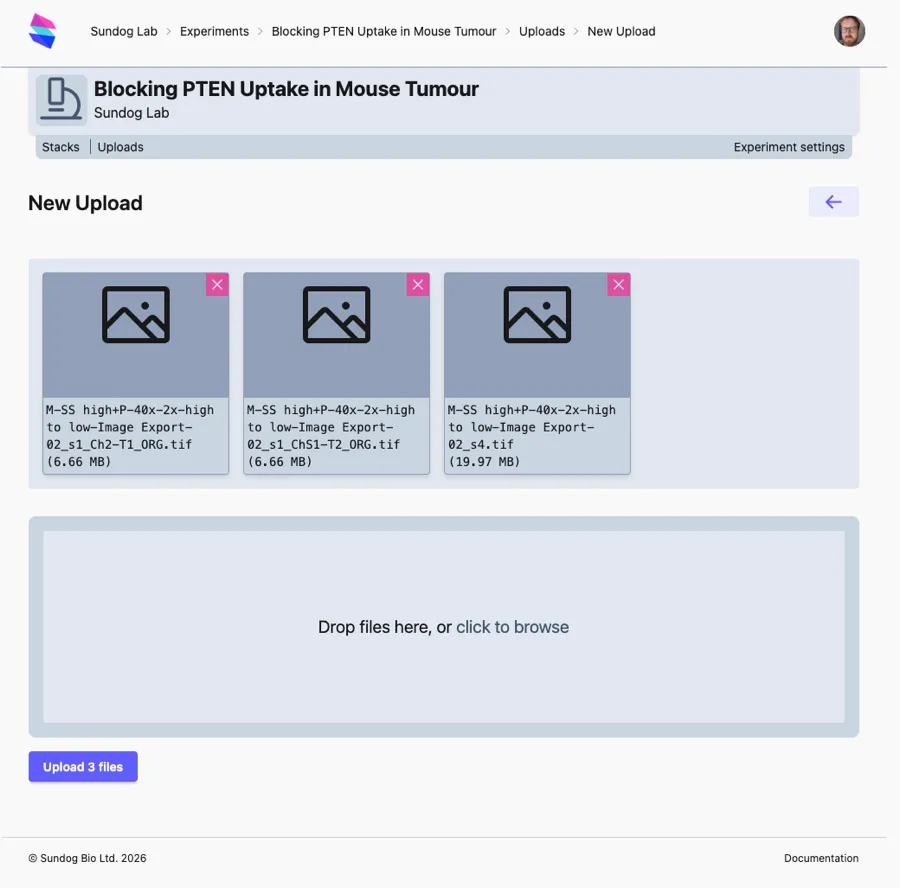
The files you wish to upload will appear in the scrollable upload area. Some file formats may display a visual preview.
At this point, you can remove any you have added by mistake (with the pink × button) or add more files, by dragging them into the upload zone.
When you’re ready to upload your files, click upload N file(s). Your upload will begin. Progress bars will show you percentage progress and estimated time remaining for each file.
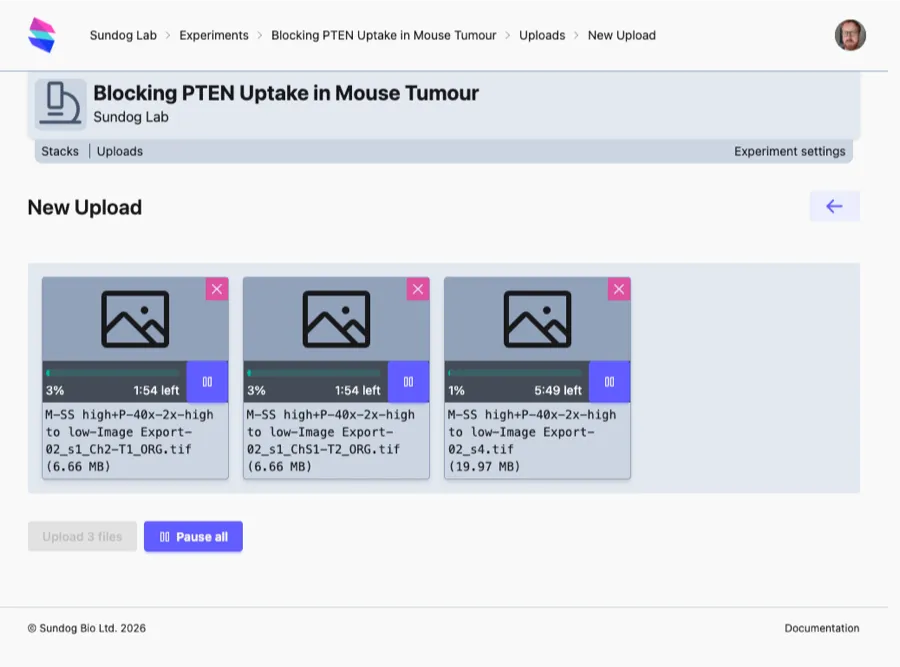
You can pause all uploads, pause individual uploads, or remove/cancel uploads whilst they are in progress. If your connection is interrupted, return to the new upload page for the experiment: you will see your previous upload, and be able to resume it (or canel it).
Once the upload is complete:
- if you uploaded a single file, you’ll be taken to edit its details. Its
nameis derived from the Filename, but you can give it more meaningful names if you’d like. - if you uploaded more than one file, you’ll be taken to the Uploads page for the experiment, listing your latest uploads first.
Processing an upload
Section titled “Processing an upload”For an upload page to be used in Sundog, it must be processed. Processing takes the file you uploaded and does the necessary work to make it viewable in our online StackViewer.
Click on the upload to see the pages within it.
If the file you uploaded contained a single page - either a single-page tiff, or an unpaged format like JPEG/PNG, this single page will automatically be processed as soon as the upload is complete.
If the file contains multiple pages, you can choose pages to process from the upload page:
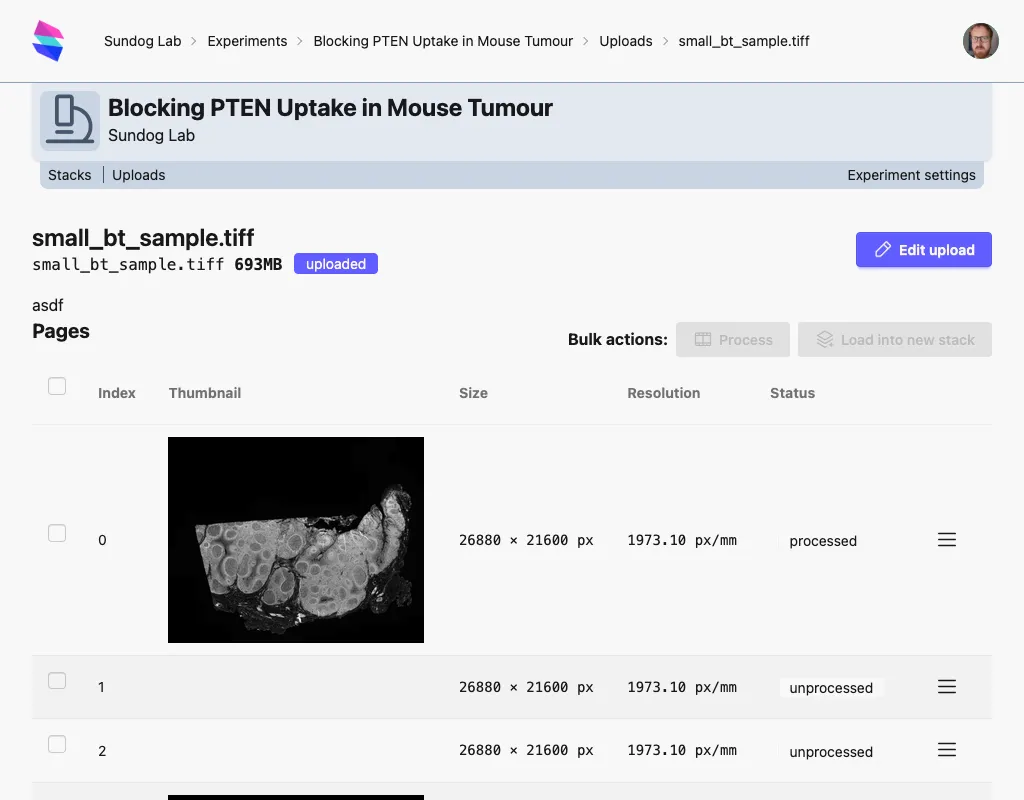
Select the layers you’d like to process with the checkboxes in the left column - or use the top-left checkbox to select them all. Click Process from the bulk-actions buttons top right. As pages process, their status will update to ‘processed’, and their thumbnails will appear.
Previewing an upload
Section titled “Previewing an upload”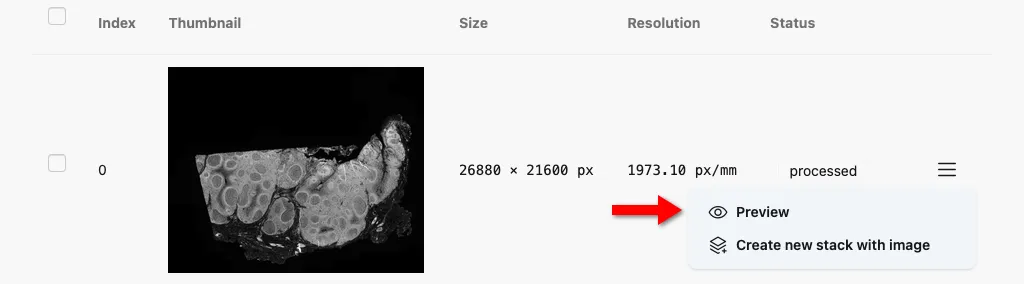
Once processed, you’ll be able to view a preview of the image from the page’s action menu. Click preview, and you’ll see the full-size image in a popup.
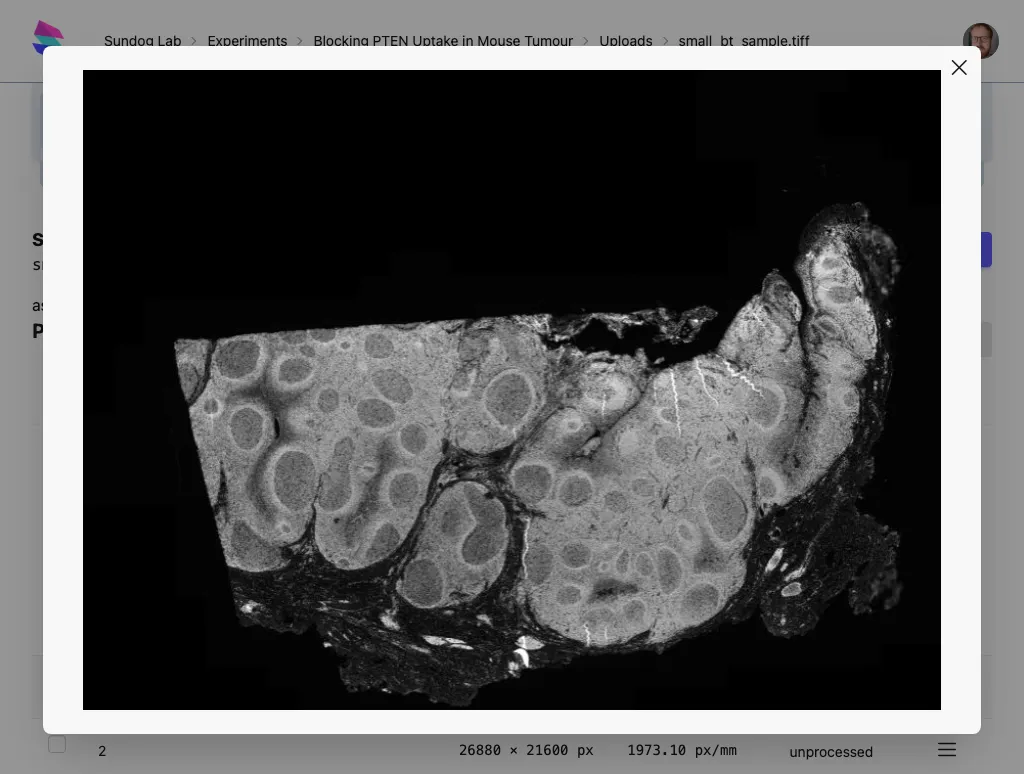
You’ll be able to zoom and pan this image at full resolution. However, this is not a Stack (yet). It’s just a quick preview. To view the image with colleagues, you’ll need to make a Stack.
Upload quotas
Section titled “Upload quotas”Uploads contribute to your lab’s upload quota (see Labs). The file size of the original upload is what contributes to the quota. It doesn’t matter how many pages you process, or how many stacks you create: the original file size is what counts.