
Users
Your Sundog Account
Section titled “Your Sundog Account”It is most likely that you will be invited to Sundog by a colleague. At this point, you’ll set up a user account, choosing an email address and username.
Your user account is not explicitly connected to the lab you are invited to. If you leave this lab - and possibly move to another - you can still keep your Sundog account; it’s yours for life.
Your user account is not connected to a single email address. If you need to add new email addresses to log in with - for instance, because you are moving lab - you can do that.
Do not make a new Sundog account for every Lab! Sundog is quite happy for you to be in as many Labs as you’d like, for whatever reason.
Usernames and display names
Section titled “Usernames and display names”Every user must have a username on Sundog. This alphanumeric string is a unique identifier for yourself. It will be visible to any user on Sundog. The only constraints are that it is made of letters, numbers, and underscores (). It does _not have to bear any relation to your real name, or to your email. Your username is what you’ll use to log in to Sundog.
Optionally, you can also set a display name. This is how you’ll be represented across the site. This is a regular string, that can contain spaces and any characters you’d need to display your name. It does not have to be unique, and again, doesn’t have to bear any resemblence to your real name, though we’d recommend using something like your real name so that other users will know who you are.
If you don’t set a display name, your username will appear as your identifier across the site.
Other user data
Section titled “Other user data”Avatars
Section titled “Avatars”Your avatar is a graphic representation of you. It might be a photo of your face, or an icon or illustration that uniquely identifies you. It’s what appears in a circle, top right, on the application, and on your content in the StackViewer.
By default, your avatar is the first letter of your display name or username, atop your personal color (see below). You can upload a new avatar in the profile editor.
Personal Colors
Section titled “Personal Colors”Your personal color is the background for your default avatar, and the color of your mouse cursor/username in a StackViewer. This is randomly allocated when you sign up; however, it can be edited on the profile edit page.
Links and Bio
Section titled “Links and Bio”You can add a text-based bio, as well as links to relevant online items, as part of your profile. Links consist of a combination of a URL and the text that describes that URL.
Any links/bio data you put into your profile can be viewed by any other Sundog User.
Email alert frequency
Section titled “Email alert frequency”You can choose when you want to receive emails when someone mentions you or replies to a comment thread you are interested in. Right now, you can choose to either be alerted immediately or not at all, but there will be further options in future. This information is only visible to you, not other users.
Editing your user profile
Section titled “Editing your user profile”From the main menu, top right on the site:
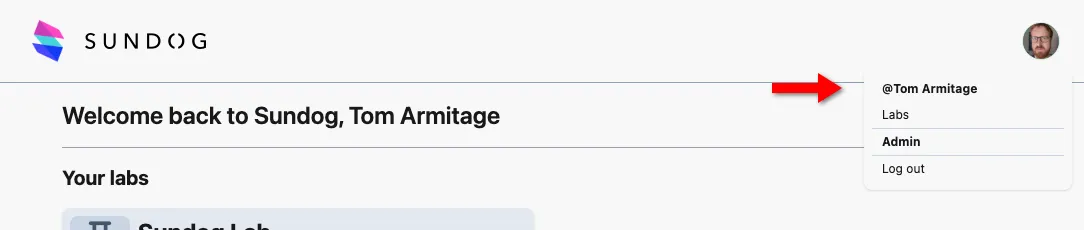
click your username/displayname at the top to view your profile:

and then, from the submenu under the profile header, choose Edit user profile.
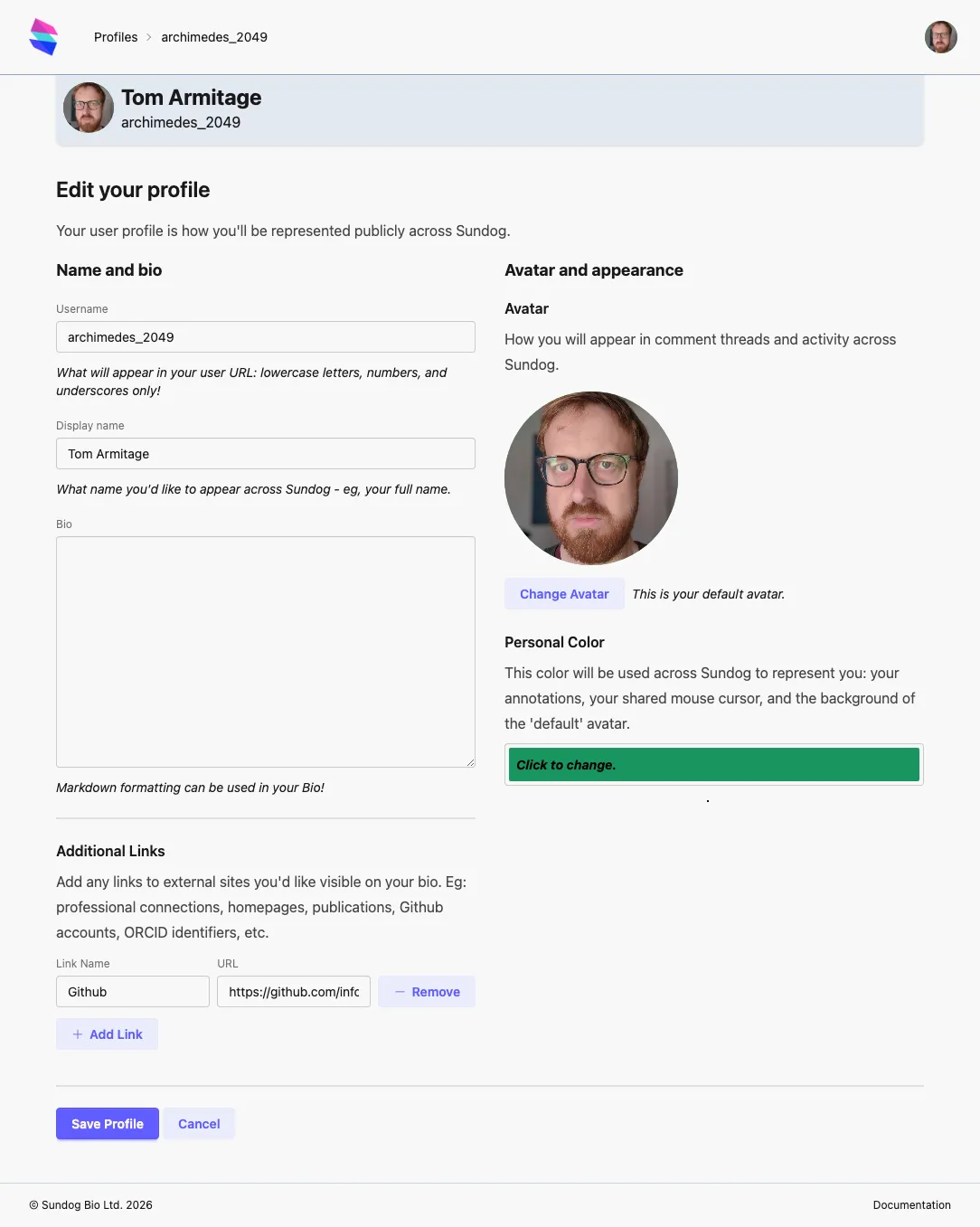
You must click Save Profile to persist any changes to your profile.